Activate your Multi-Factor Authentication
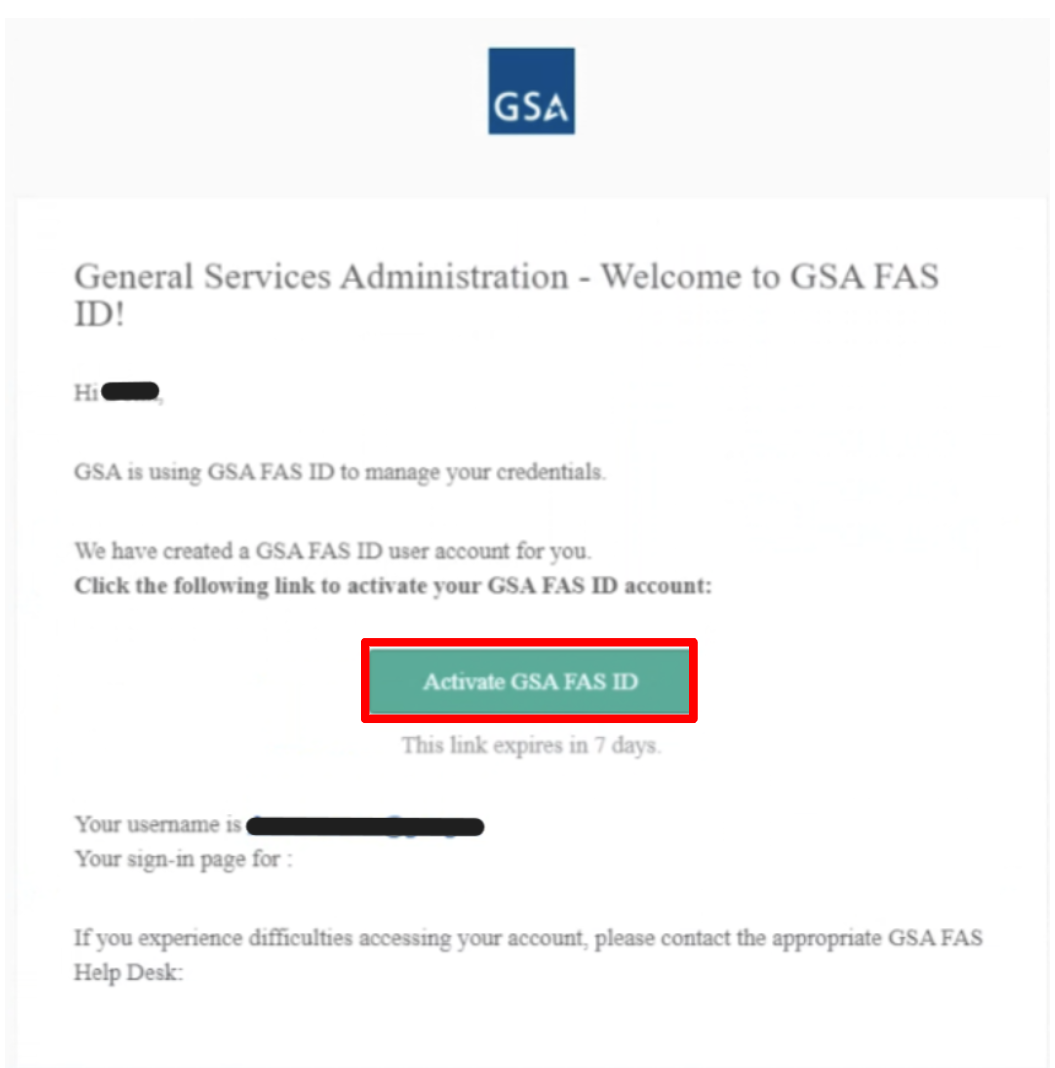
- Open the email from MFA-No-Reply+noreply@gsa.gov in your email application and click the Activate GSA FAS ID button.
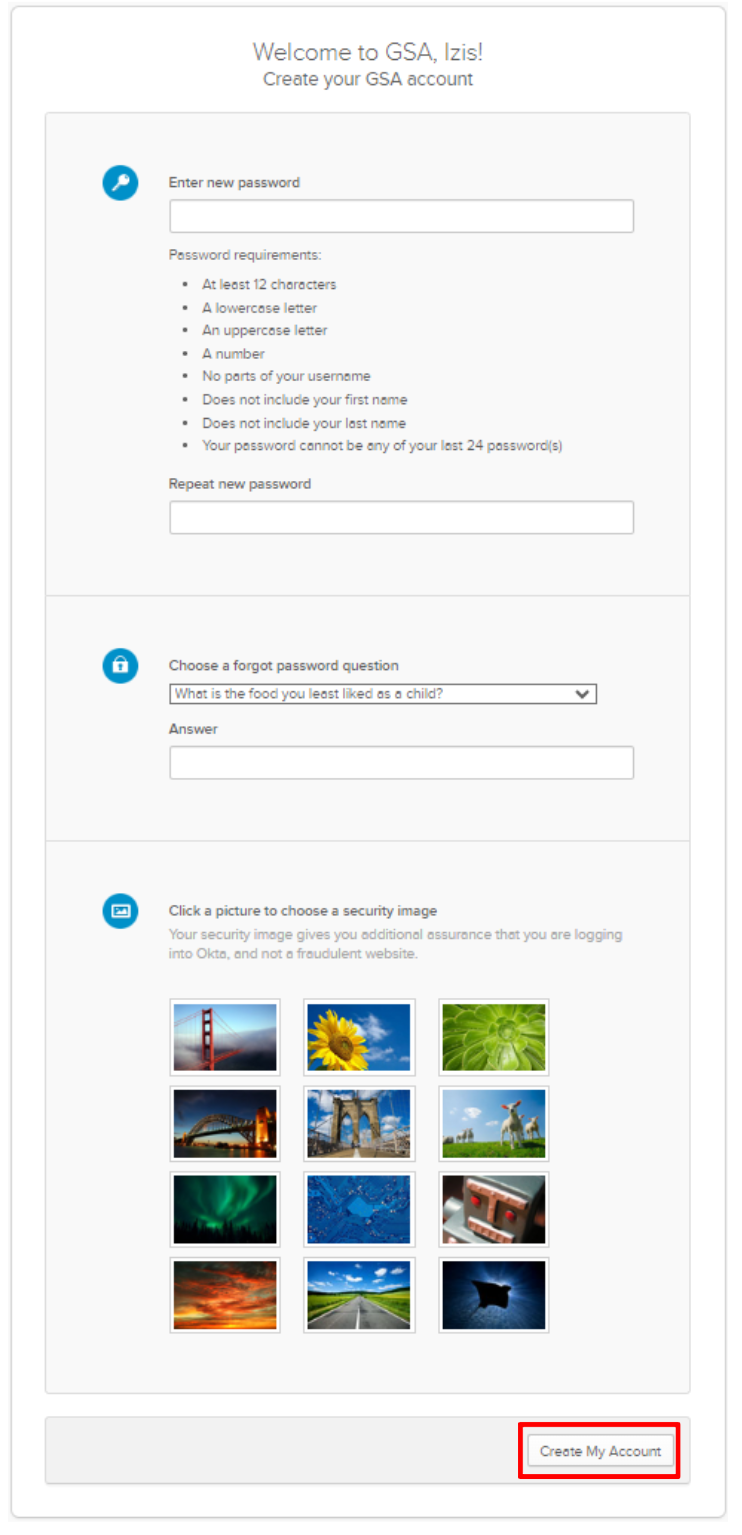
- Provide and confirm a password.
- Select and answer a forgot password question.
- Please remember this answer as users will need to provide it when performing automated password resets within the system.
- Select a security image.
- Select the Create My Account button.
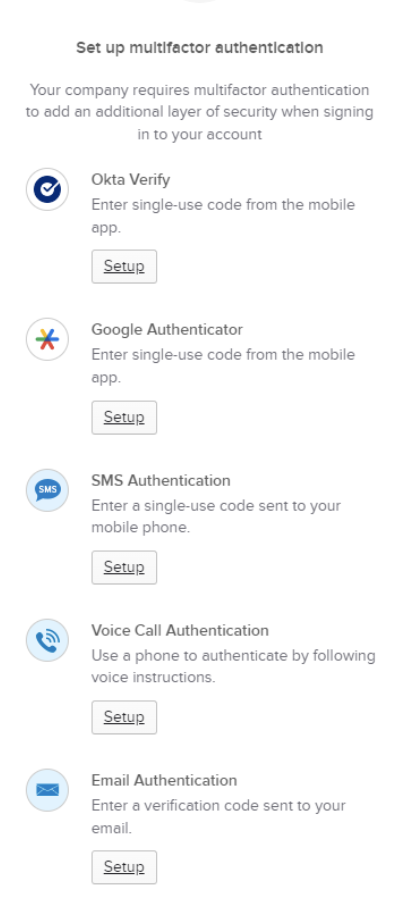
- Choose and set up at least one MFA method. This will be the method that FAS SRP will leverage to send a six (6) digit single-use code that will be used to sign in to FAS SRP. Users will need to provide their password and a single-use code for each log in session.
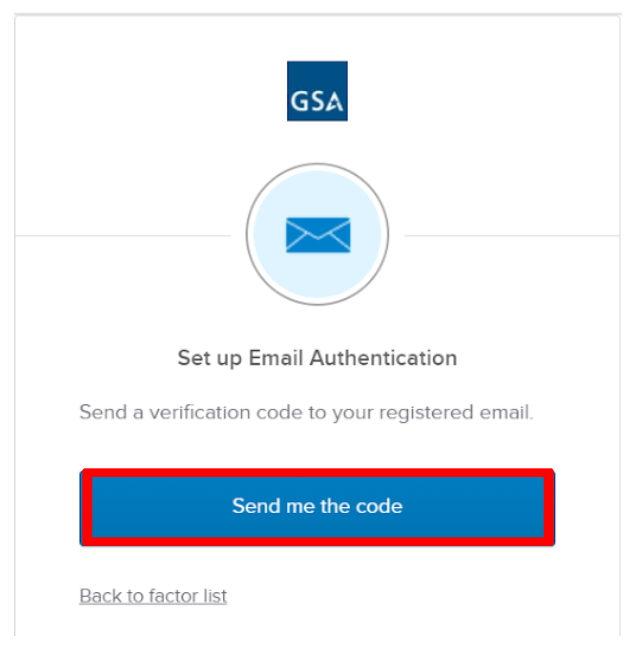
- For the purposes of this example, the Email Authentication method was chosen. Please select the Send me the code button to receive a single-use code within an email.
- Check your email for the single-use code.
Note: If you do not receive a code in your inbox, please check the Spam folder.
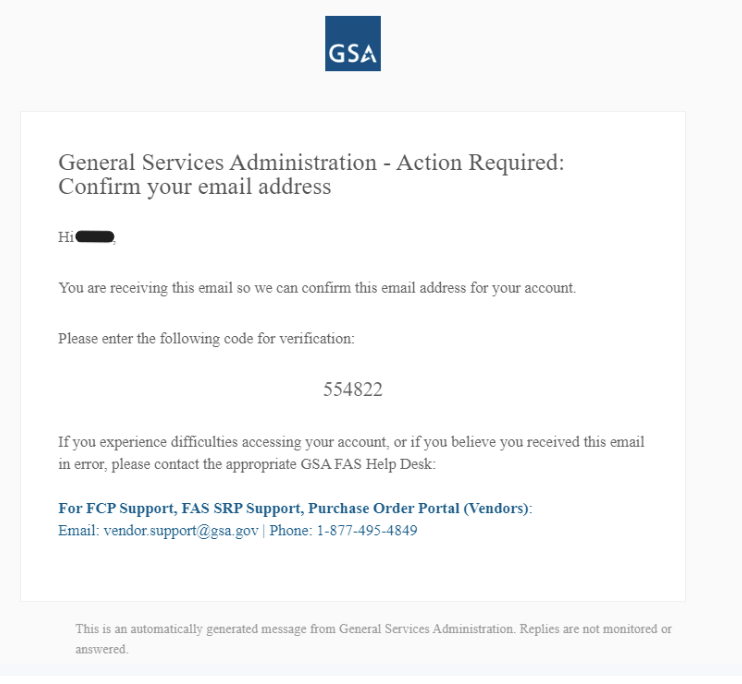
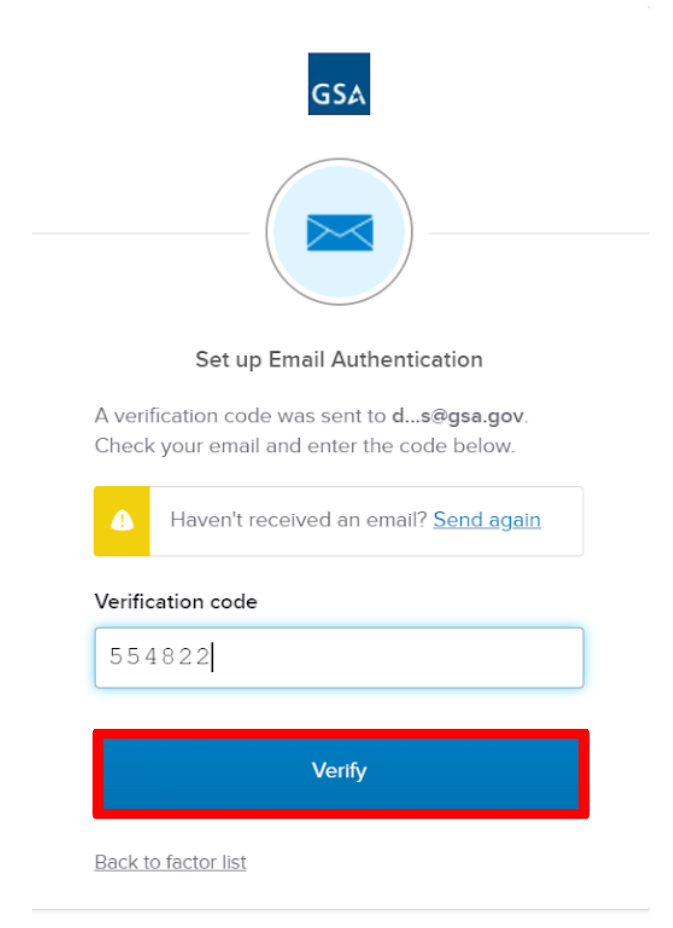
- Enter the single-use code received via email in the Verification code box and select the Verify button.
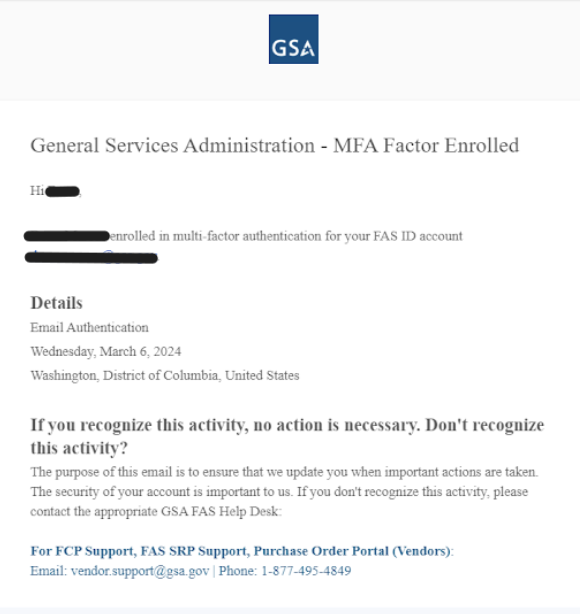
Note: At this point, email authentication has been activated as an MFA method, and the system will send an email verification with a log of the action.
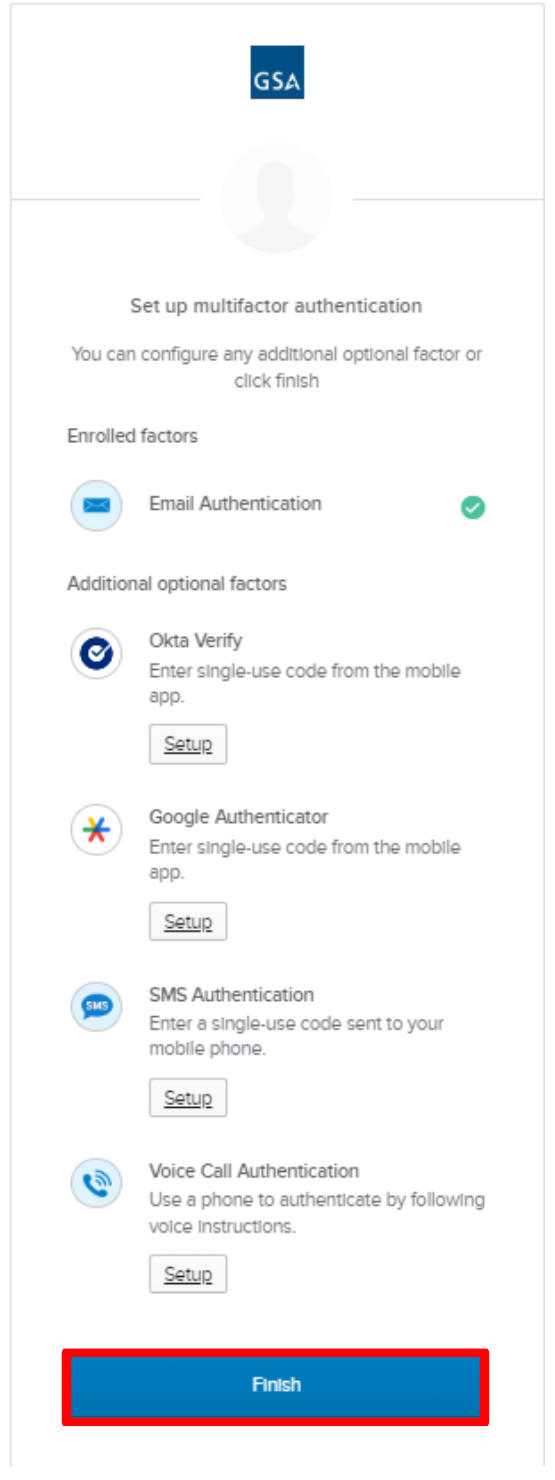
- Select the Finish button to complete the activation of a FAS SRP account. Users may also choose to set up additional optional authentication methods at this time, and are highly encouraged to do so.
- After selecting the Finish button, users will be redirected to their respective FAS SRP home page.
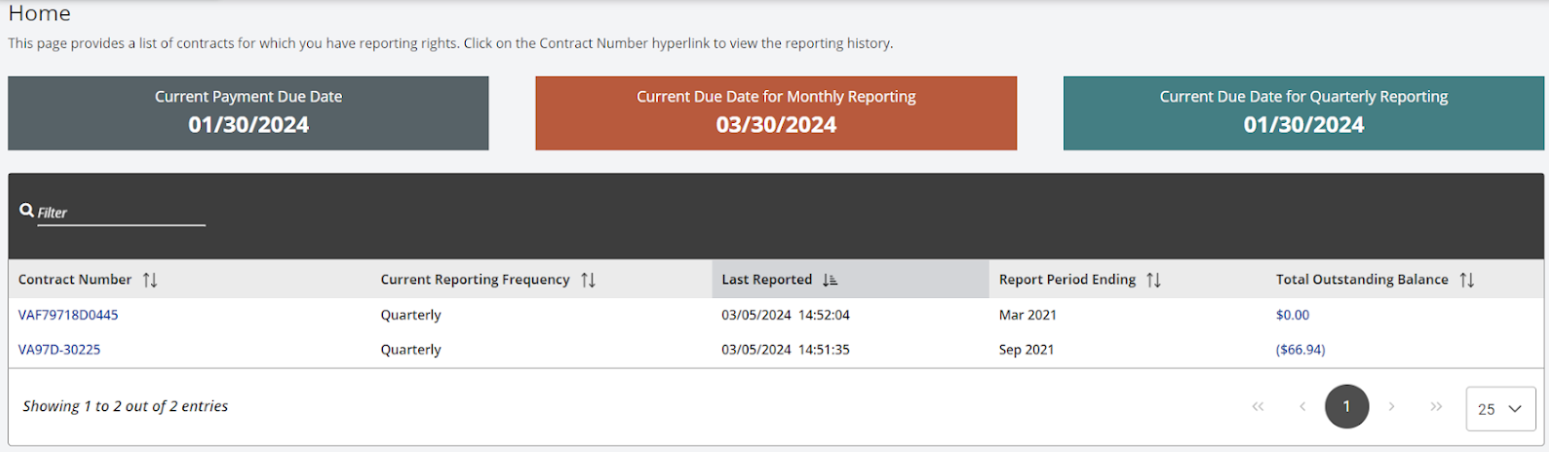
Figure 16: FAS SRP Contractor Home Page - At this point, registration and activation are complete.