Invoice Summary
The Invoice Summary page provides a tool for tracking invoice-related financial data associated with a Task Order within the FAS Sales Reporting Portal (SRP). This page provides a detailed breakdown of submitted invoices, helping both contractors and GSA personnel monitor sales activity, invoice status, and applicable fees.
This page is accessible through both Contractor Login and GSA Internal Login, ensuring that all stakeholders—including vendors, contracting officers, and finance administrators—can efficiently access and analyze invoice-related data.
The Invoice Summary page is designed to facilitate:
- Transparent Financial Oversight
- Ensures that all reported sales and invoices align with contract requirements.
- Provides visibility into the Contract Access Fee (CAF) calculations and payments.
- Invoice Tracking & Reconciliation
- Allows contractors to verify their submitted invoices, ensuring that reported sales and fees match their financial records.
- Helps GSA users monitor whether contractors have fulfilled their reporting obligations.
- CAF Compliance & Payment Monitoring
- Displays both system-calculated CAF (SRP CAF) and vendor-reported CAF (CAF CLIN), helping stakeholders verify fee accuracy.
- Tracks CAF payments, reducing discrepancies in financial reconciliation.
- Reporting & Data Analysis
- Users can filter and export invoice summary data, providing structured reports for internal audits, contract monitoring, and performance reviews.
- The data is structured to support compliance reviews and financial audits.
- Multi-Level Accessibility
- Contractors can view submitted invoices, confirm sales amounts, and ensure accurate CAF reporting.
- GSA Internal Users (e.g., Contracting Officers (COs), Financial Analysts, and Quality Assurance Personnel) can review and validate invoices, ensuring compliance with federal reporting requirements.
Invoice Summary Navigation
To navigate to the Invoice Summary page:
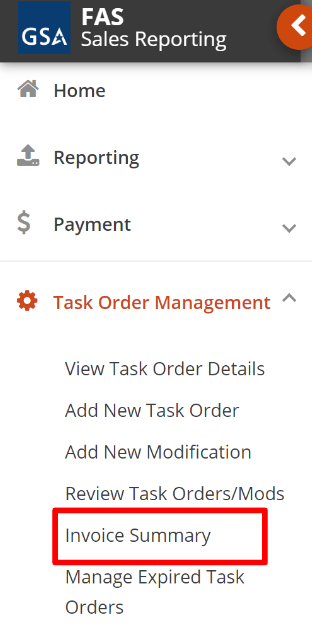
- From the Main Menu, select Task Order Management.
- Click Invoice Summary.
Once on the Invoice Summary page, users must select the following fields:
- Contract Number (Mandatory) – Select the contract associated with the invoice.
- Task Order (Mandatory) – Choose the relevant Task Order.
- Invoice (Optional) – Select an invoice for detailed reporting if desired.
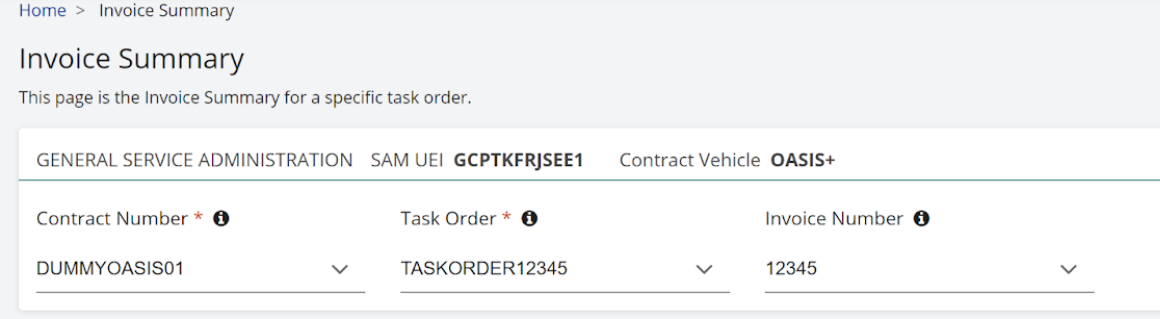
Invoice Summary Page
Invoice Summary Header Fields
The Invoice Summary page displays key contract and task order details at the top of the screen, including:
- Company Name: The contractor’s registered business name.
- UEI: The Unique Entity Identifier for the contractor.
- Contract Vehicle: The contract type associated with the Task Order.
- Contract Number: The unique identifier for the contract.
- Task Order: The Task Order associated with the invoices.
Sales and CAF Summary Bar
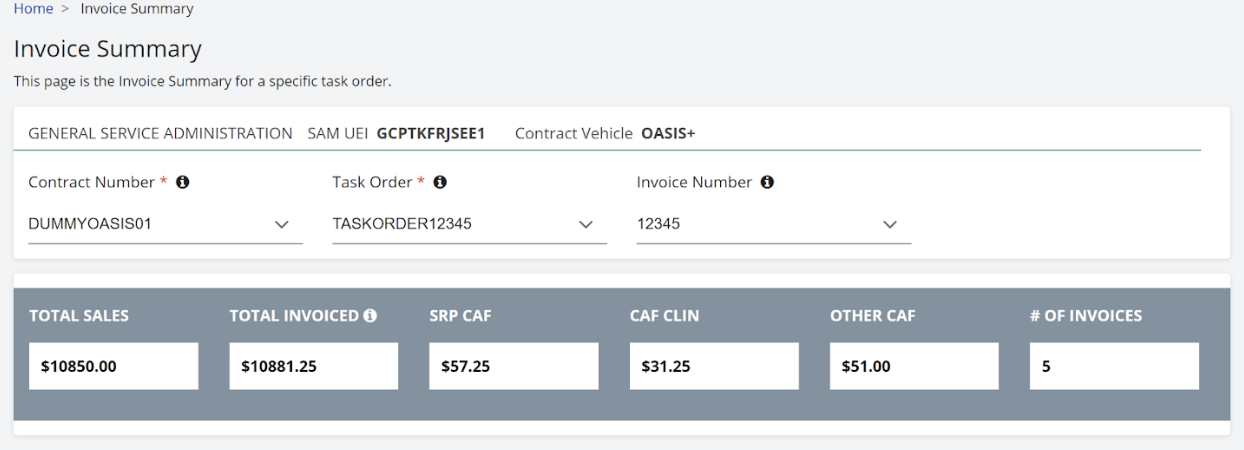
The Summary Bar presents a high-level view of invoice-related financial data. These figures are dynamically updated based on the selected Task Order, even if a specific invoice is not chosen.
- Total Sales: The sum of all reported sales for the Task Order, excluding any Contract Access Fee (CAF) deductions.
- Total Invoiced: The total amount invoiced for the Task Order, including CAF CLIN amounts.
- SRP CAF: The total CAF calculated by the SRP system based on standard CLIN rates.
- CAF CLIN: The CAF reported by vendors in their submitted invoices.
- Other CAF: Any additional CAF that has been paid outside the standard reporting process.
- # of Invoices: The total number of invoices submitted in SRP for this Task Order.
Invoice Summary Table
The Invoice Summary Table displays detailed data for each invoice associated with the selected Task Order. The following fields are included:
- Invoice Number: The invoice reference number submitted by the vendor. This field is a hyperlink that directs users to the View Sales Data page for the reporting period where the invoice was recorded.
- Reporting Period: The period for which the invoice was submitted.
- Paid Date: The date the Invoice was paid by the customer agency.
- Total Sales: The total sales amount reported on the invoice, not including the CAF CLIN.
- Total Invoiced: The sum of Total Sales and CAF CLIN values from the invoice.
- SRP CAF: The CAF calculated by SRP for the invoice.
- CAF CLIN: The CAF amount reported by the vendor.
Note: The Other CAF field is currently not linked to specific invoices. Vendors making payments via the "Other Amount" option in SRP pay at the Task Order level, and tracking payments at the invoice level is not yet supported.
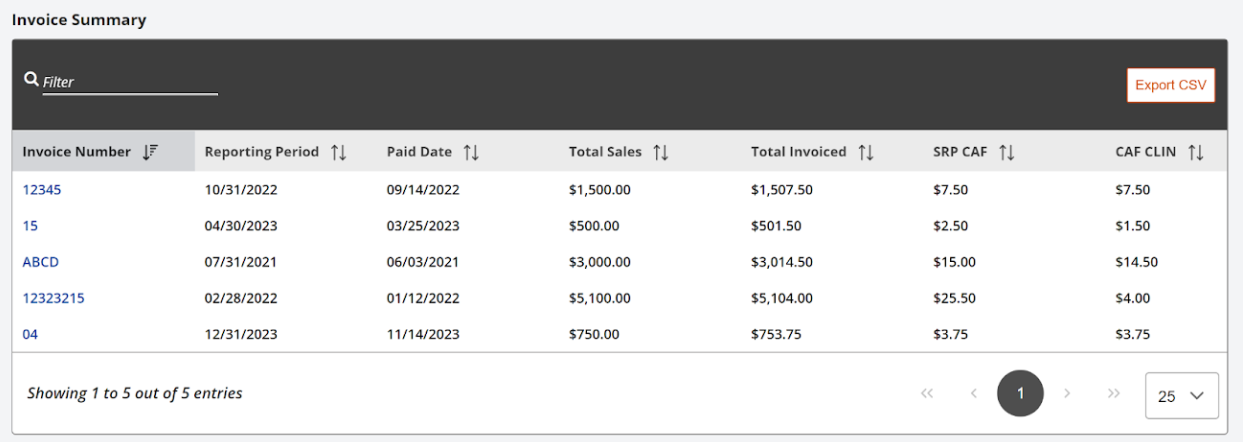
Note: All fields from the Invoice Summary Table will be viewable in the exported CSV file.
Both Contractors and GSA Internal Users can export Invoice Summary data into a CSV file from the Invoice Summary page for record-keeping or analysis, by clicking the Export CSV button at the top right of the table. The exported data includes Contract Number, Task Order, Invoice Number, Reporting Period, Paid Date, Total Sales, Total Invoiced, SRP CAF, and CAF CLIN.
To export:
- Click the Export CSV button at the top right of the table.
- The system will generate a downloadable CSV file with the selected invoice data.
