Manage Task Orders and Modifications
A Task Order Modification is defined as a formal change through a contracting action done to the Task Order. Only certain fields can be edited for a Modification and the Add Modification form is used to collect the modification data. Modifications take place after the Task Order has been awarded, and will be allowed in the FAS SRP after the Task Order is submitted and approved.
|
|
Task Order Modification data is loaded into the SRP from 3 data sources: ASSIST Award Data, FPDS Award Data, and Contractor Input on the Form Entry page.
If there are differences in the data between the sources, a reconciliation will be done with that data to ensure the current approved version is used.
How to Manually Add a New Task Order
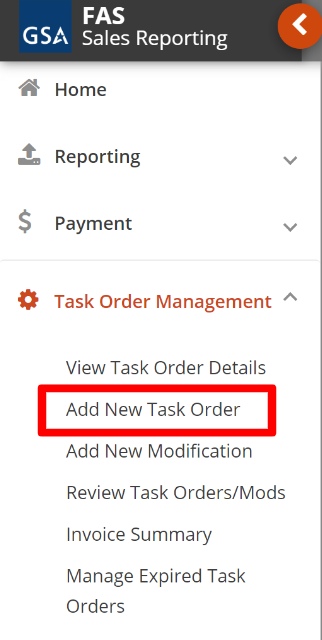
- Navigate to Task Order Management on the left side navigation panel.
- Select Add New Task Order.
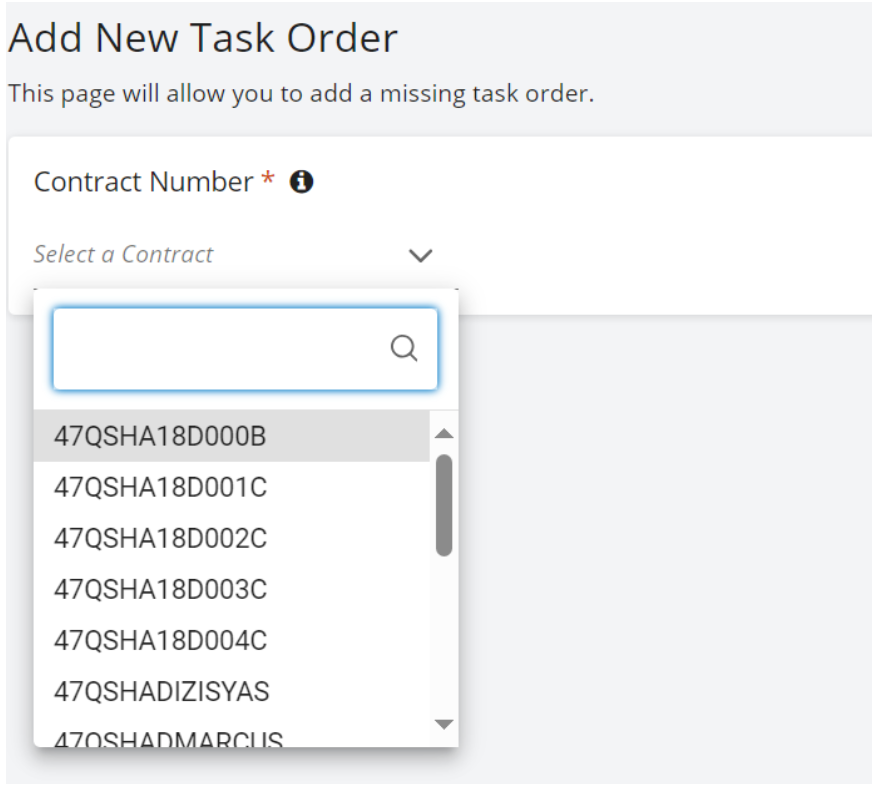
- Select your Contract from the contract dropdown list.
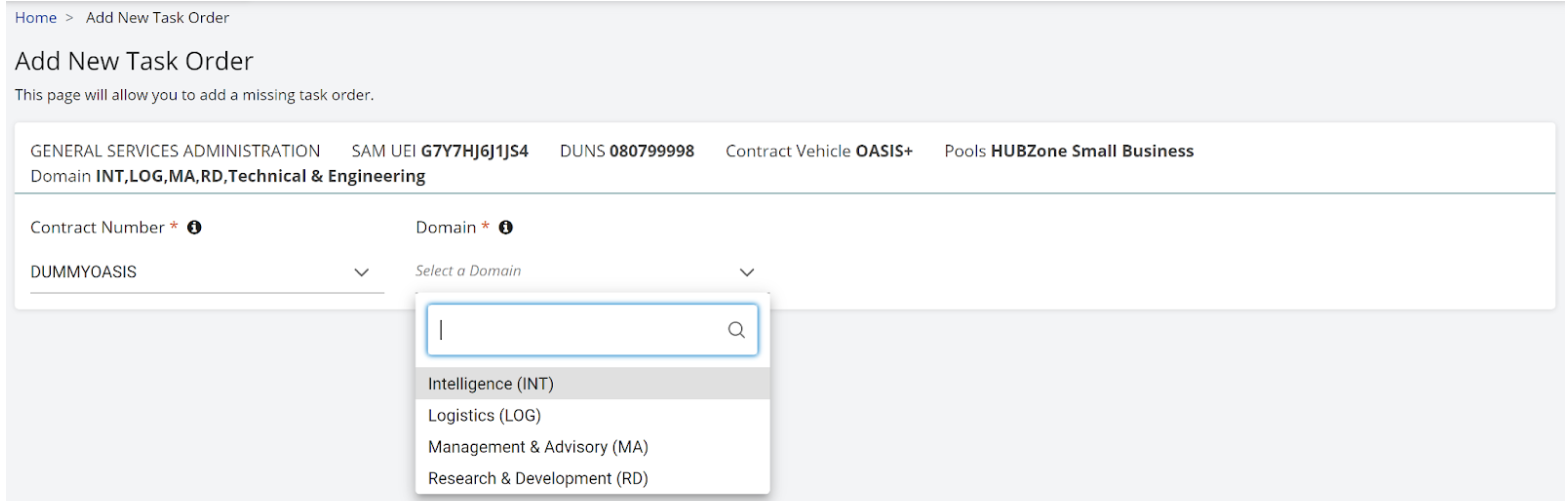
- For MAC contracts only, select a Domain.
- Enter your unique Task Order Number (duplicates are not allowed).
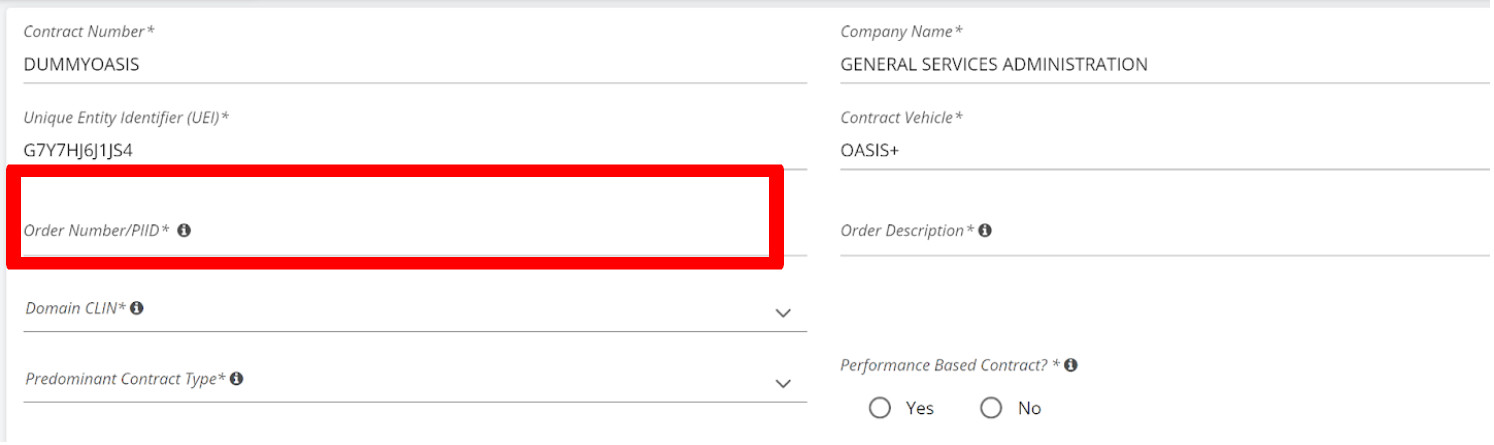
- Mandatory/Non-Mandatory Field Check: Verify all mandatory and non-mandatory fields to ensure data can be submitted. System required fields are marked with an asterisk (*) and must be populated or you will not be able to submit your report.
Note: Other fields may be mandatory under your contract/task order and must be filled in, even if they are not required by the system to submit your report.
Special Note on OCO:
When entering OCO details for a new Task Order, the OCO Agency, OCO Name, and OCO Email fields are entered as free text and are required for submission.- Enter OCO Agency – Type the name of the Ordering Contracting Officer’s agency in the free text field.
- Example: "General Services Administration"
- Enter OCO Name – Type the name of the Ordering Contracting Officer.
- Enter OCO Email – Provide the OCO’s email address.
- The system validates email formatting. If the email is not valid, an error message will display.

Figure 71: OCO Agency, Name, & Email Fields - Submit the Task Order - A Task Order cannot be submitted until all three OCO fields are complete.
- If the Task Order contains no changes or missing data, it will be accepted and will enter Non-MAS Accepted status, and the contractor may proceed with reporting.
- If the Task Order includes changes or has missing data, it will enter Non-MAS Review status. Reporting will only be allowed after the GSA review is completed and the Task Order is accepted, entering Non-MAS Accepted status.
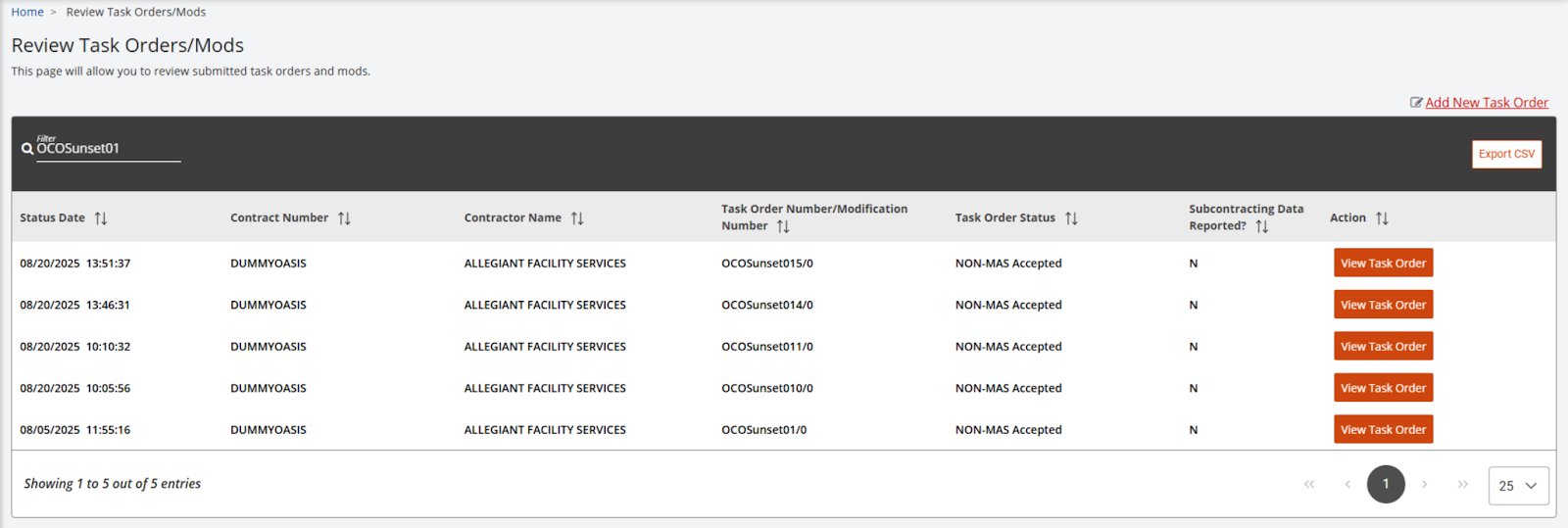
Figure 72: Task Order Statuses - Review Task Orders/Mods
Note: Review the Task Order Statuses section for detailed definitions of each status. This will help you interpret the current state of your Task Order in SRP and understand what actions, if any, are required before reporting.
- Enter OCO Agency – Type the name of the Ordering Contracting Officer’s agency in the free text field.
- Period of Performance Check: Verify the period of performance validations.
- Period of Performance (end dates) cannot occur before Period of Performance (from dates).
- Initial Period of Performance cannot occur after the Period of Performance (from and end dates).
- Data Validations Check: Verify that all fields accept intended values and meet the expected criteria.
- Upload Document Check: Add all relevant document(s) to the task order by attaching 1 document for every acceptable file type. (Allowed file types are .pdf, .doc, .docx, .xls, .xlsx, .txt, .ppt, .pptx, .csv, .jpeg, .png, .zip. Files should not exceed 100MB). Add an attachment by clicking Browse, selecting a file, entering a File Description, and clicking Upload.
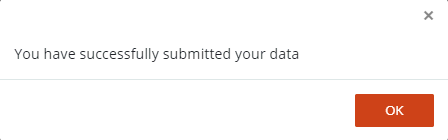
- Click Submit to transmit the data. A pop-up window will appear informing you that you have successfully submitted your data.
|
|
IMPORTANT:
- Data fields accept data according to field criteria.
- Period of Performance (end dates) cannot be before Period of Performance (from dates).
- Initial Period of Performance cannot be after the Period of Performance (from and end dates).
- The tool warns the user to enter data in all mandatory fields.
How to Add a Modification
- Navigate to Task Order Management on the left side navigation panel.
- Select Add New Modification.
- Select your Contract from the dropdown list.
- Select your Task Order from the dropdown list.
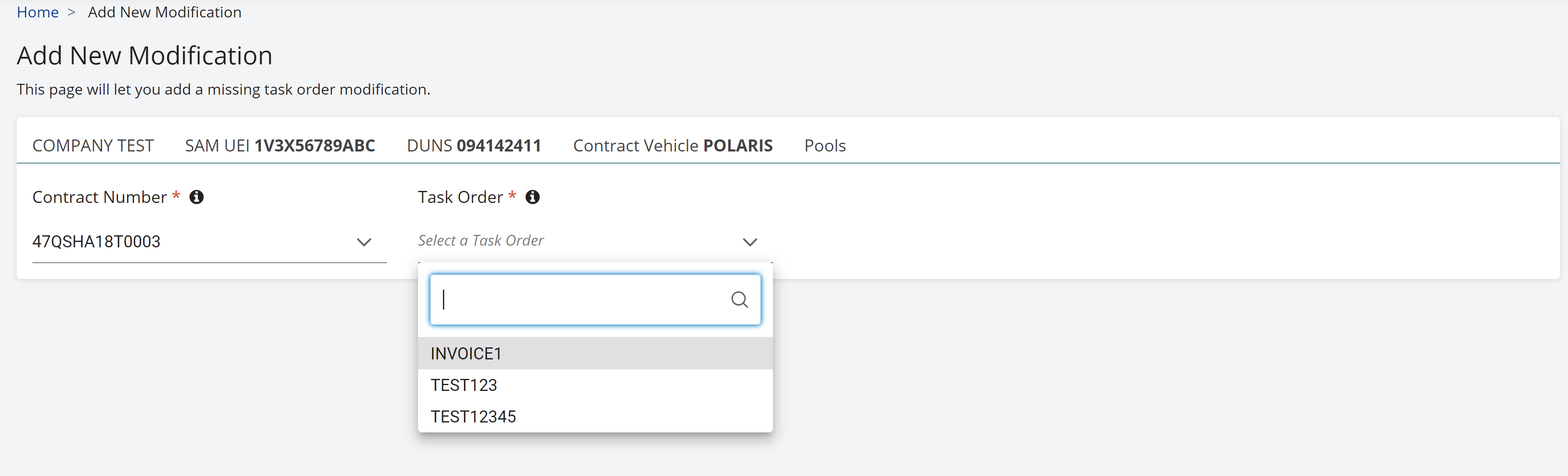
- Confirm the following fields on the left side of the screen are displayed and populated:
- Contract #
- Order #
- Initial Order Description
- Estimated Ultimate Completion Date
- Total Funded Amount
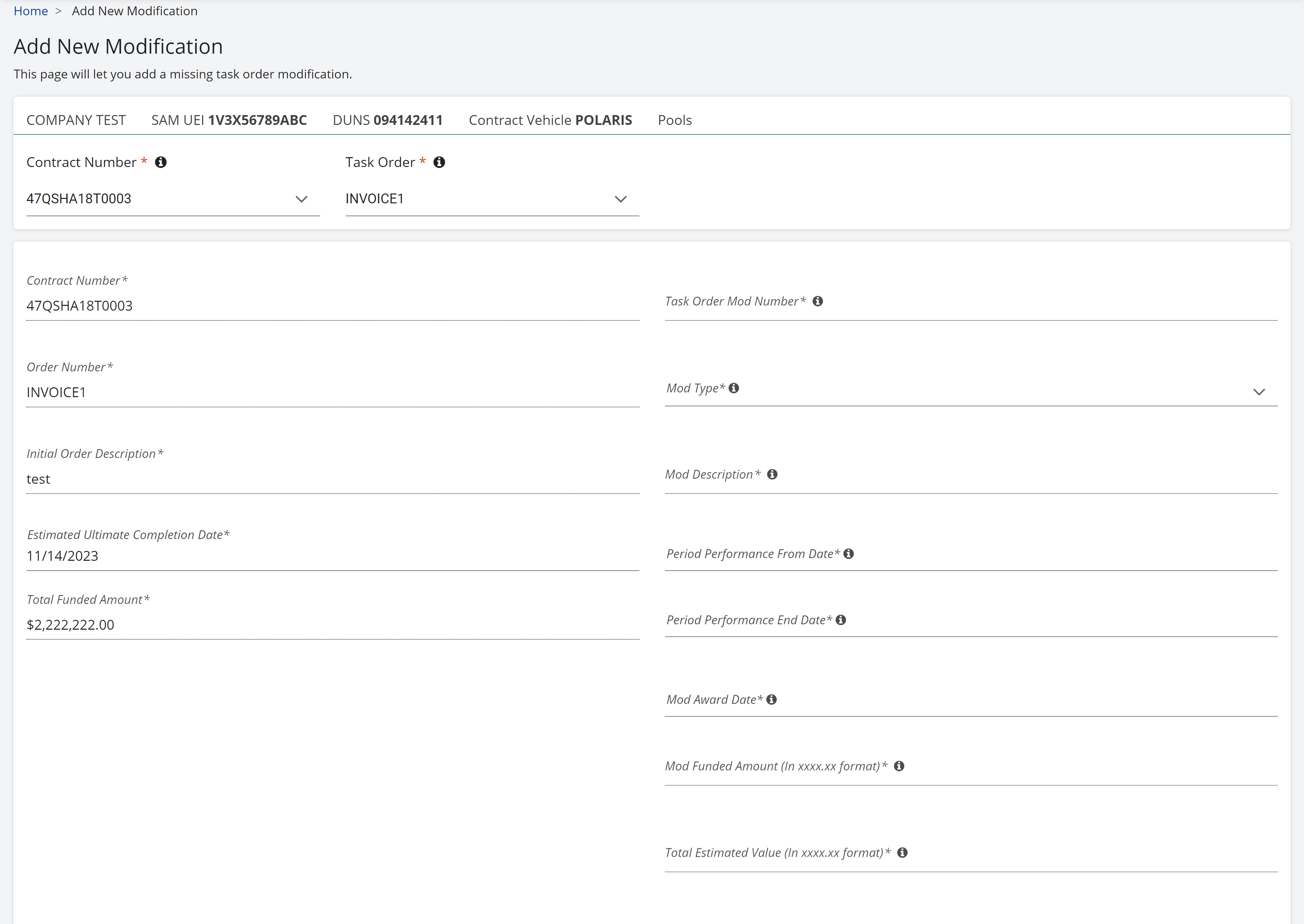
- Enter a Task Order Mod Number.
|
|
- Select a Mod Type from the dropdown list.
- Enter a Mod Description.
- Select a Period of Performance From Date.
- Select a Period of Performance End Date.
- Select a Mod Award Date.
- Enter your Mod Funded Amount.
- Enter the Total Estimated Value.
- You may add an attachment by clicking Browse, selecting a file, entering a File Description, and clicking Upload.
- Click Submit and Ok.