Review and Manage Task Orders and Modifications
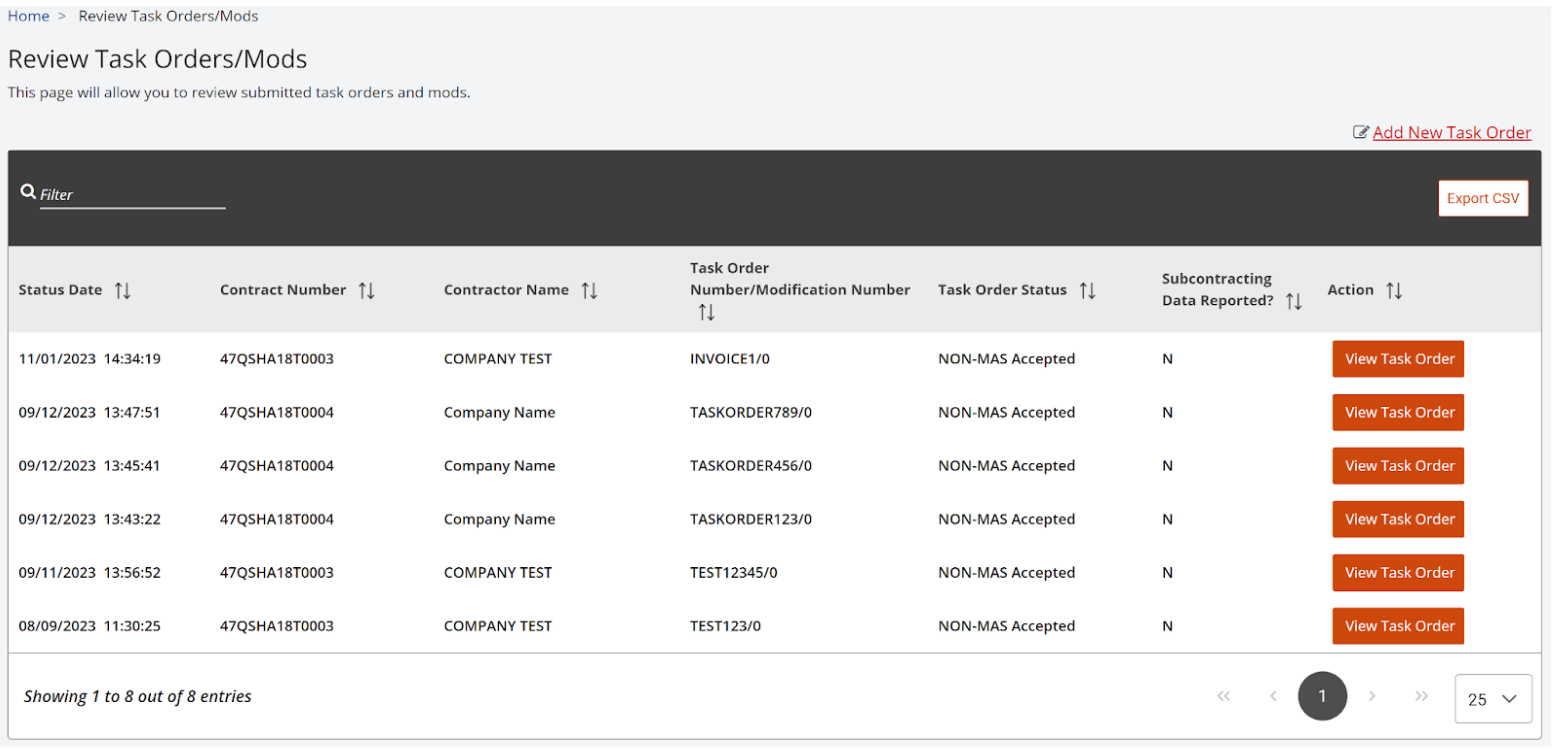
Task Order modification is a very important change made to an existing Task Order. These modifications can add a new Period of Performance start date and end date but the end date cannot be beyond the Estimated Ultimate Completion Date. As part of the modification, the Total Funded Amount may also be updated based on the estimated value of the changes. This review ensures all Task Order details are accurate, timely, approved and ready for reporting. Once the necessary fields are completed and the data has been submitted, you can review the changes on the Review Task Orders/Mods page.
Both Contractors and internal users can export the task order data displayed on the Manage Task Orders screen, as a CSV file for their records or reporting purposes, by clicking the Export CSV button at the top right of the table
How to Manage Task Orders
- Navigate to Task Order Management on the left side navigation panel.
- Click on Review Task Order/Mods.
- The Review Task Orders/Mods page will open.
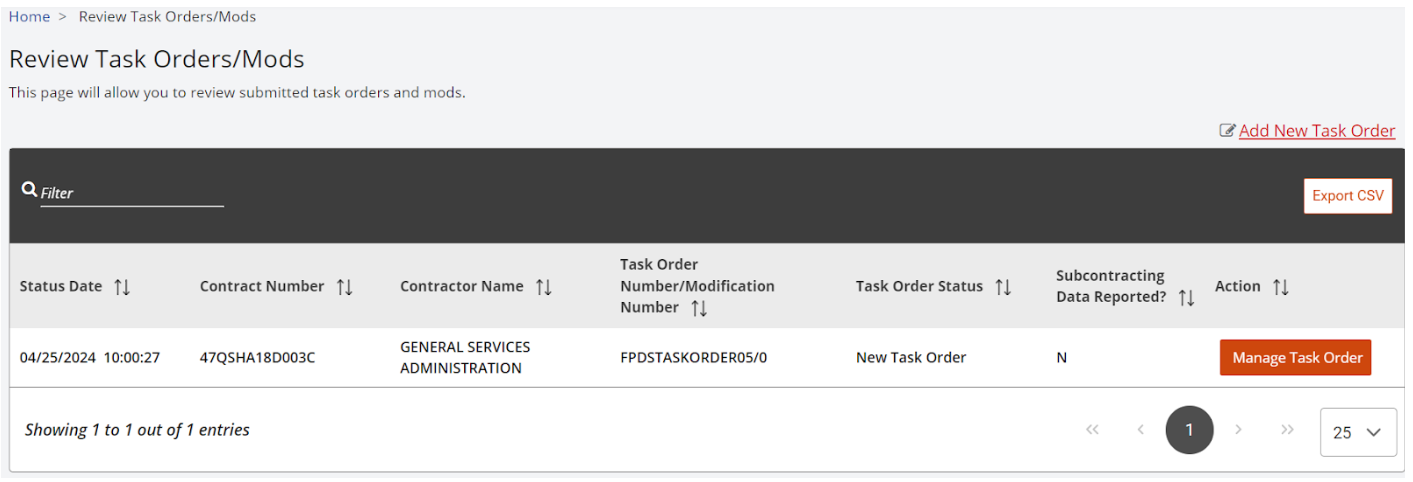
- In the Task Order Status column, the status will show as ‘New Task Order’.
- Click on the Manage Task Order button.
- The View Task Order page will open.
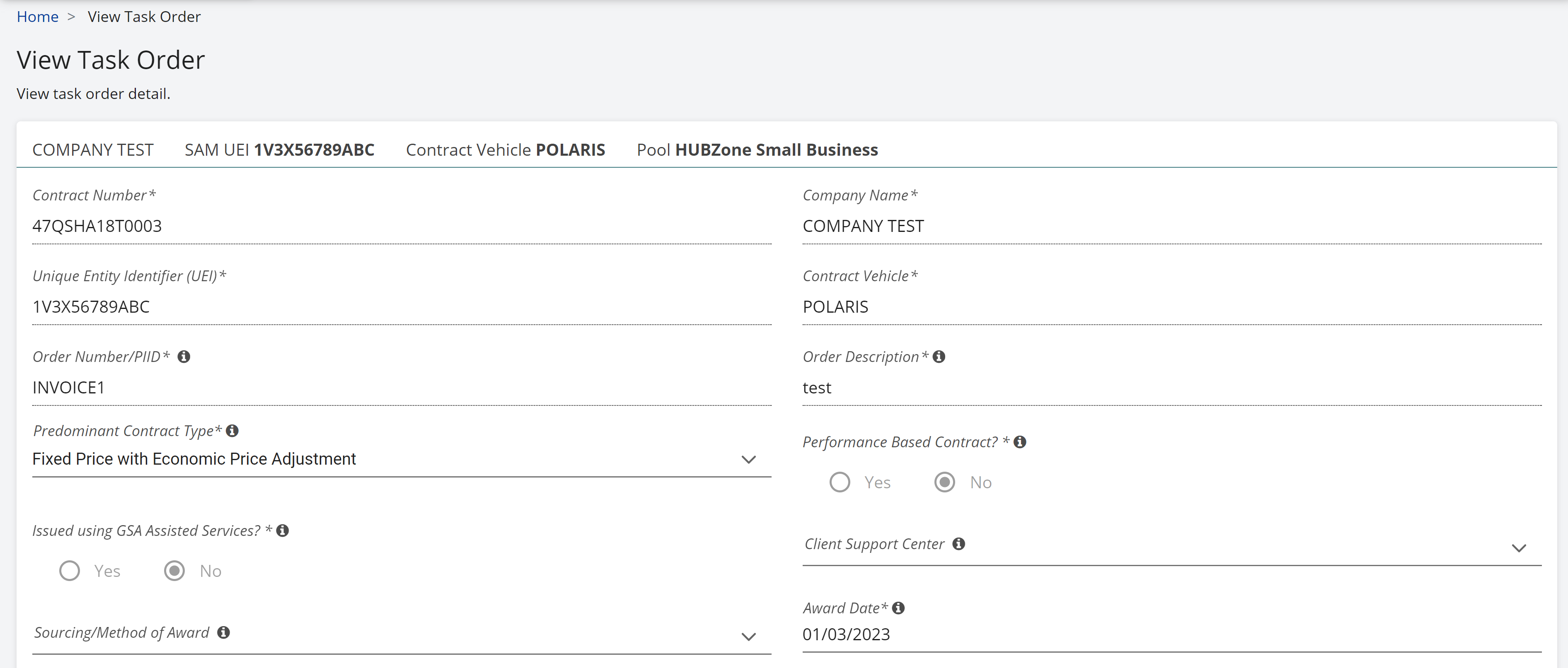
- Review the information on the page, add missing information and when all information is reviewed for accuracy, click Submit.
- Click Ok on the confirmation message for successful submission.
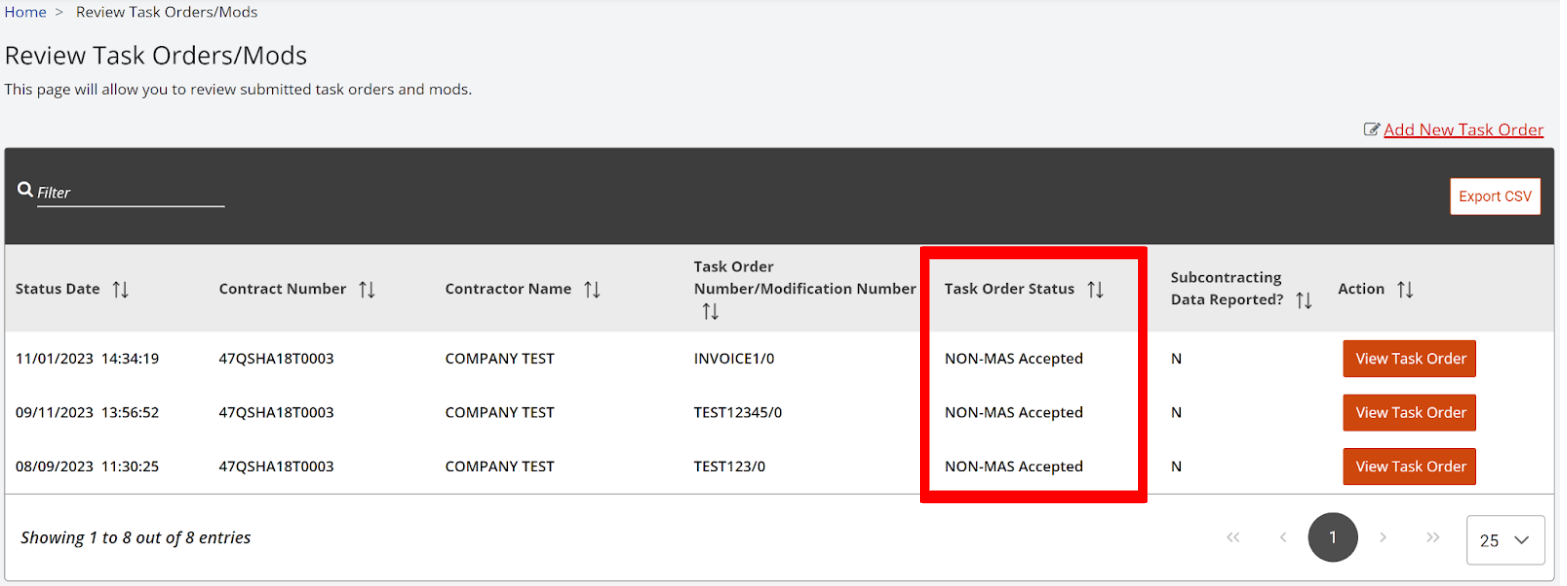
- The status will change to ‘NON-MAS Accepted’ on the Review Task Orders/Mods page.
- In the View Task Order page, if there is information that is incorrect in any locked fields, click on the check box for Request Changes to Locked Fields.
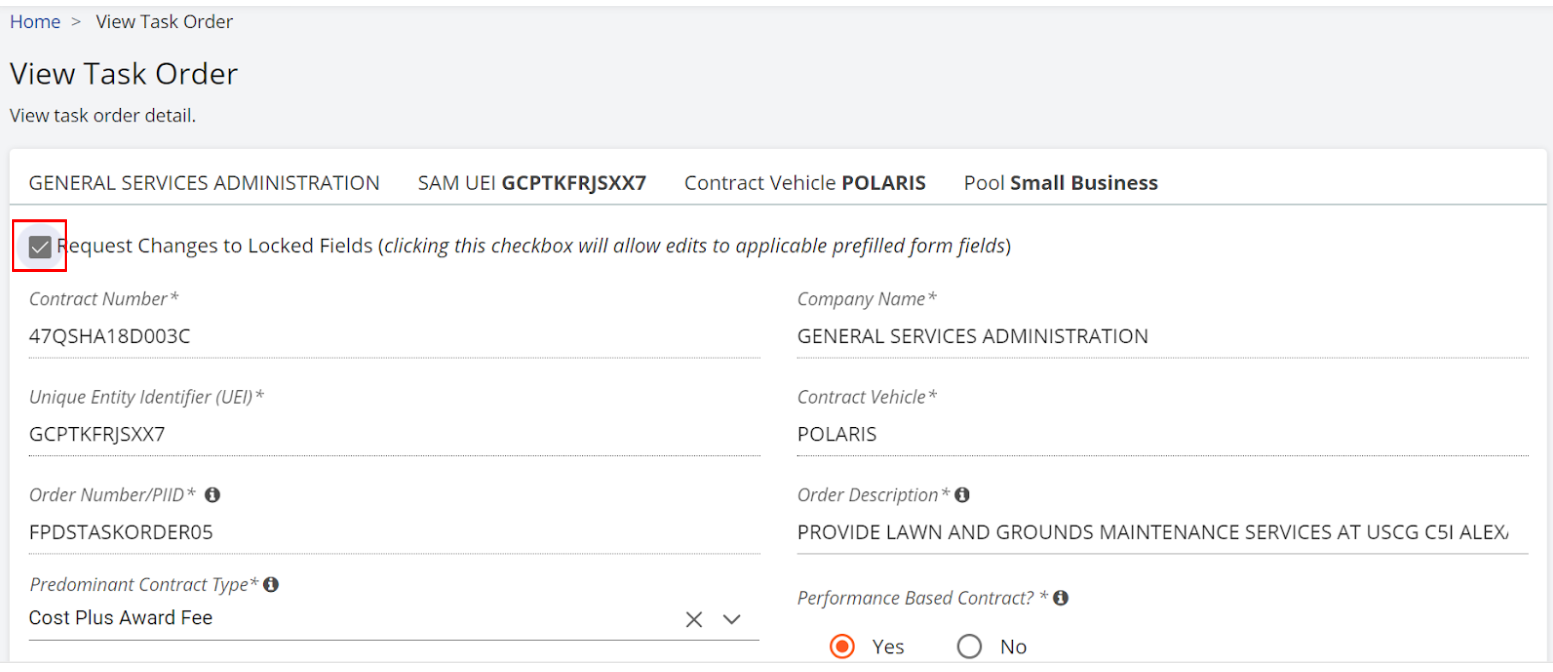
- Update the fields with incorrect information with accurate information and click Submit.
- Click Ok on the confirmation message for successful submission.
- The status will change to ‘NON-MAS Review’ on the Review Task Orders/Mods page.
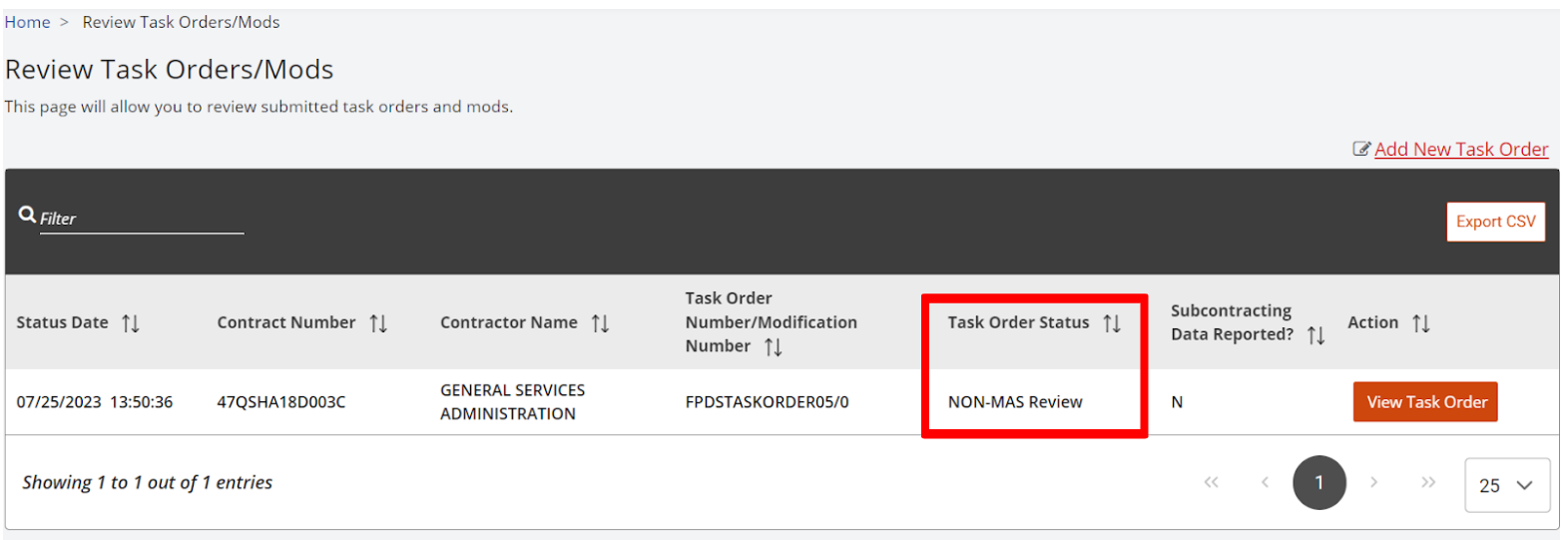
- Once the status changes to ‘NON-MAS Review’, the Program Office will receive a notification to review and have access to see the status changes, review and take any required actions to move the process forward.
When a Task Order undergoes review by the Program Office and the submission is rejected (requiring changes by the Contractor), the Task Order Status on the Review Task Orders/Mods page will display as 'NON-MAS Rejected' and the Contractor will receive an email notification of the change.
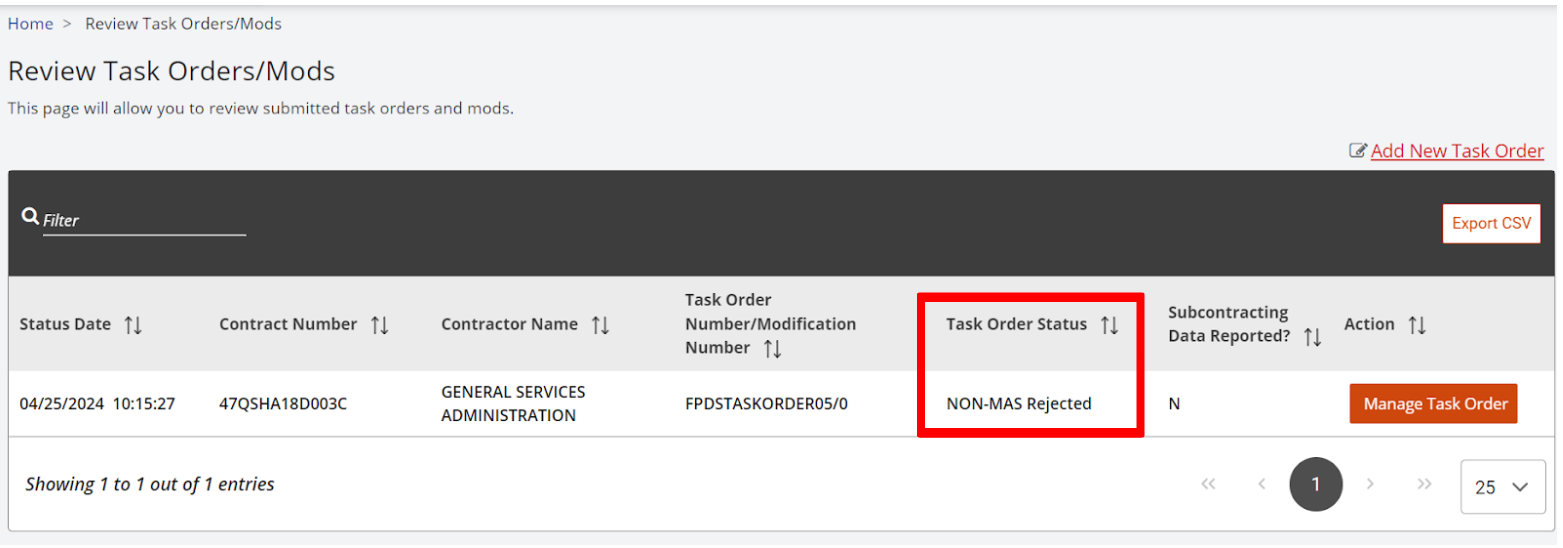
- Click on the button Manage Task Order.
- On the View Task Order page, verify and update the fields that need to be corrected.
- Click on Submit.
- Click Ok on the confirmation message for successful submission.
- The status will change to ‘NON-MAS Review’ on the Review Task Orders/Mod page and the process will continue (Notification to the Program Office) until the status is NON-MAS Accepted. Once the Task Order/Mod has been accepted, it can only be Viewed.